Optimizing NextJS Image Optimization
If you’re using Vercel with even a moderate amount of images, you’ve likely run into the issue of running over the NextJS Image Optimization Limits.
It also feels like the thing of thing that could potentially be solved by adjusting project defaults on the Vercel side, but since I can only control my own projects, I wanted to share what I did to be more efficient with image optimization.
Problem
Vercel’s default settings are to optimize images every time you build your project (I think), regardless of whether or not it’s for a production build. I’'m sure they have a good reason for this — but for my purposes, I don’t really care if my images are optimized, unless they’re for my production build.
Optimizing images for build previews and non-production deploys results in using a ton of image optimizations (at least in my project) which are completely unnecessary for me. I suppose I could change the pattern or settings for how I get deploy previews, but I’m kind of used to how it behaves and rather like getting a deploy preview whenever I push code up.
Solution
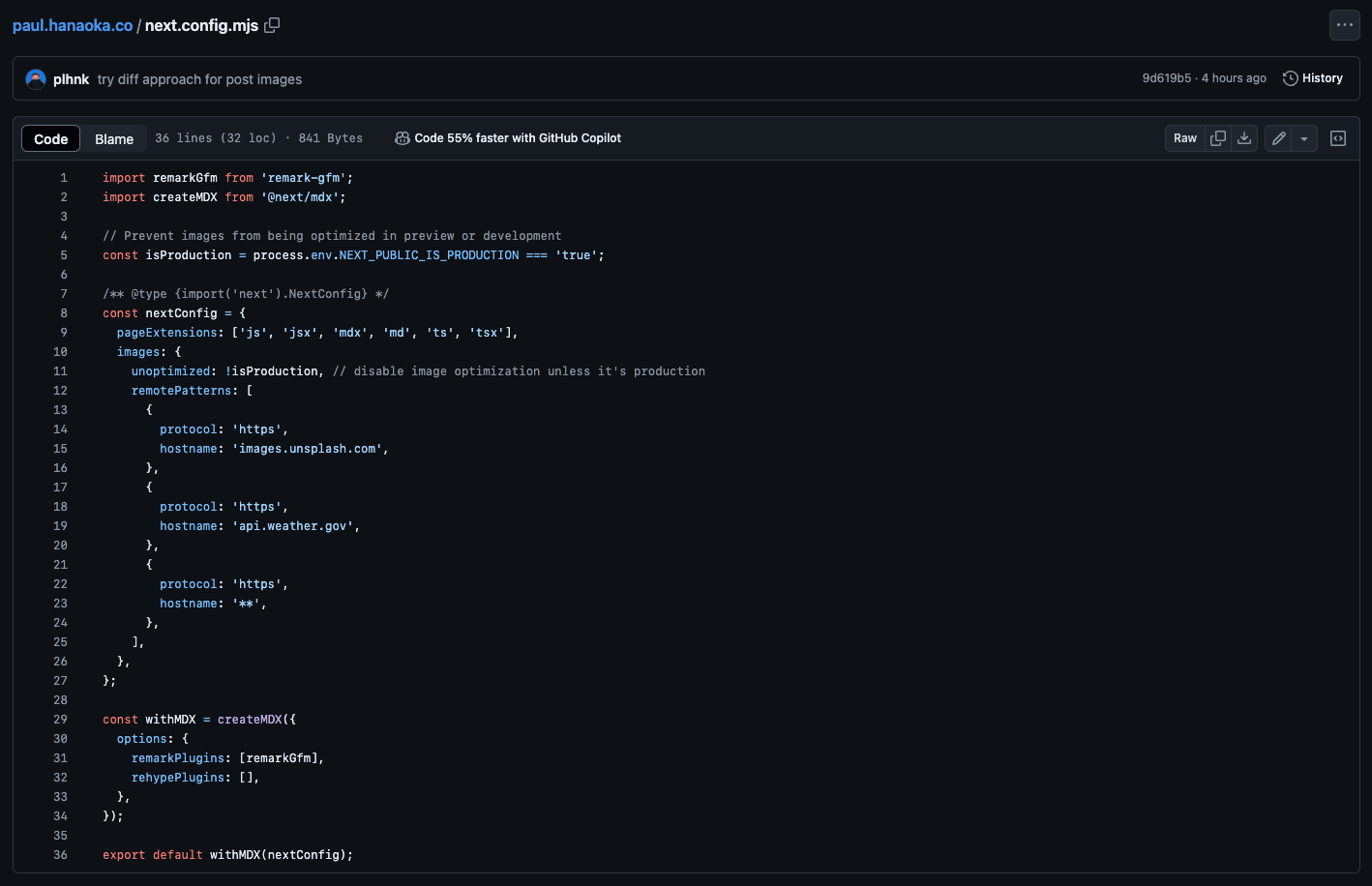
My workaround to disable optimizations (outside of production) is to add a few lines to my next.config:
// Prevent images from being optimized in preview or development
const isProduction = process.env.NEXT_PUBLIC_IS_PRODUCTION === 'true';
and then in the images section, set:
unoptimized: !isProduction,
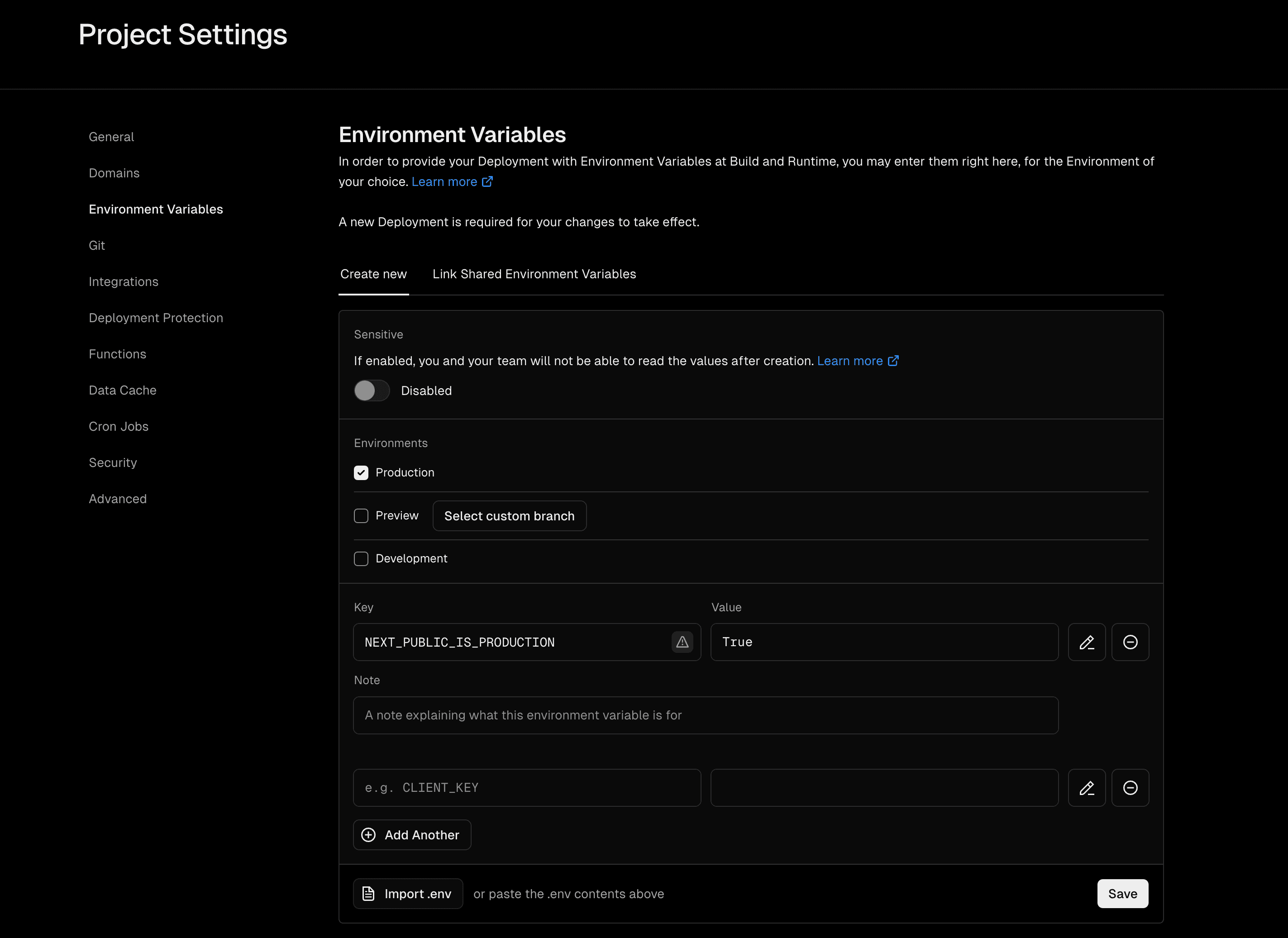
Then in the Vercel project settings, I can set the environment variable NEXT_PUBLIC_IS_PRODUCTION to false for Preview and Development and true for Production.
Thanks to this very straightforward (yet mostly undocumented) settings tweak, I’ve been able to stay under the image optimization limits, while still getting the benefits of Vercel’s image optimizations for production builds.